How to Activate a Travel eSIM Before or After Landing: UROCOMM Setup Steps
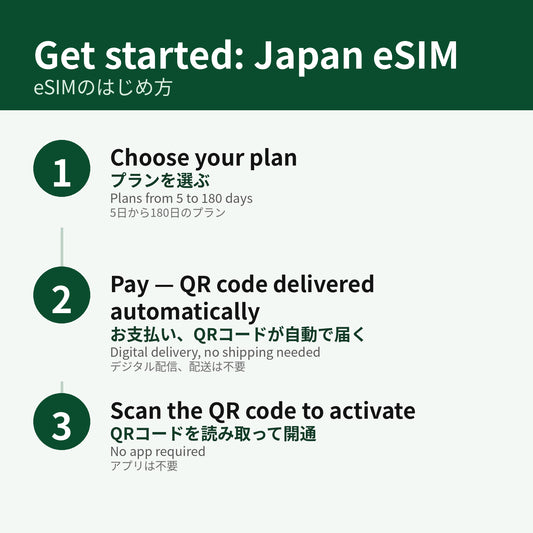
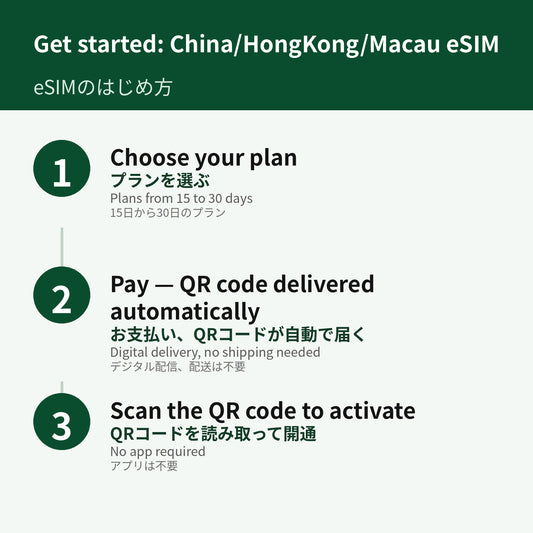
Your UROCOMM eSIM arrives as a QR code in your inbox. That code is only half the job. You install the profile at home, leave the line switched off, and turn it on once you have landed. Do it in the other order and your plan can start running down while you are still packing.
Install before you fly, activate after you land
Install the profile before you fly. Activate the plan after you land. That one order is the whole trick. UROCOMM counts validity from the day the eSIM first connects to a network in the destination country. Switch the line on at home and you can lose travel days before the trip has even started. For the longer version of that timing question, see How Long Does a Travel eSIM Take to Activate.
Before you fly: install the profile
-
UROCOMM emails a QR code and an activation code after checkout. Keep both. Screenshot the QR code and mail it to yourself, or print it. You will want it again at the destination, and airport WiFi has a habit of dying right when you need it.
-
Now add the eSIM. On an iPhone XR, 11, 13, 14, or 16 running iOS 17 or iOS 18, open Settings > Cellular > Add eSIM and scan the code. On a Samsung Galaxy S21 or newer, go to Settings > Connections > SIM Card Manager > Add mobile plan, then scan. Menu names shift a little depending on your carrier version on the iPhone 14 — the iPhone 14 eSIM setup guide covers the variations. Samsung owners have their own walkthrough in the Galaxy eSIM install guide.
-
Name the line UROCOMM and set it as secondary. Leave "Turn On This Line" off. Do not set UROCOMM as your cellular data line either. On Android, when the phone asks "Use this plan for mobile data now?", choose No. Installing a profile does not start the plan. Turning the line on is what starts the clock.
After you land: two minutes, give or take
-
Get on airport or hotel WiFi first. Then back into Settings > Cellular on iPhone, or SIM Card Manager on Android. Tap the UROCOMM line.
-
Turn on "Turn On This Line" and Data Roaming. On iPhone, go back one screen and set Cellular Data to UROCOMM. On Android, pick UROCOMM as the data SIM. Skip that last part and you get full signal bars with no internet, which is the most irritating way this setup fails.
-
Wait. One to two minutes is normal. No signal bars? Toggle Airplane Mode off and on, then give it another minute. When a local carrier name appears, load a page in your browser. You are online.
Same steps whether you bought a Canada Travel eSIM or a Portugal Travel eSIM. Nothing changes except the carrier name on your screen.
What happens if you activate early?
Turning the line on before you land is the mistake that costs you days. Plans are date-based, and the validity period begins the day the eSIM first connects to a supported network in the destination country. Land, activate, check your plan, find it expiring sooner than you counted on — early activation is usually the reason. Airport and hotel WiFi are safe at any point. Those networks do not touch the eSIM clock.
Troubleshooting
-
eSIM installed but no data. Check Data Roaming on the UROCOMM line itself, then confirm Cellular Data is set to UROCOMM and not your home SIM. Both settings live on the same screen, and both have to be right.
-
No Service or SOS only. You are probably inside a building or underground. Walk to a window. If that does not help, you may have activated before arrival and started the validity early. Email your order number to service@urocomm.com and support can check the plan status.
-
QR code will not scan. Your email also contains manual activation details. You can enter the SM-DP+ address and activation code by hand: Activate an eSIM Without a QR Code.
-
Phone says eSIM not supported. Not every handset has eSIM hardware, and no menu path will fix that. A portable WiFi hotspot does the same job without it. The mobile WiFi collection lists devices that share data over WiFi.
FAQ
Should I install the eSIM before I leave or after I land? Install before, activate after. Adding the profile does not start the plan. Turning on the UROCOMM line and data roaming before you land can start the validity period.
Can I install and activate at the airport if I forgot to do it at home? Yes, if you have the QR code and can get onto airport WiFi. That is the weak link, since airport WiFi is patchy. At the gate you would do the install and the activation back to back, which is the same steps with no wait in between.
Does installing the eSIM use my home carrier data? No. It only adds a profile. Just do not set UROCOMM as your primary data line until you land.
Do it at home, not in the arrivals hall
The QR code email is the flimsiest part of this whole setup, so treat it that way: screenshot it now, drop it in a folder you will actually find, and set a reminder for the day you land. Installing the week you book rather than the night before costs you nothing, since the line stays off either way, and it is one less thing to fumble when you are tired and the WiFi is bad. If you have not picked a plan yet, the full eSIM collection is the place to start.