How to Set Up eSIM on iPhone 16: QR Code Installation Step by Step
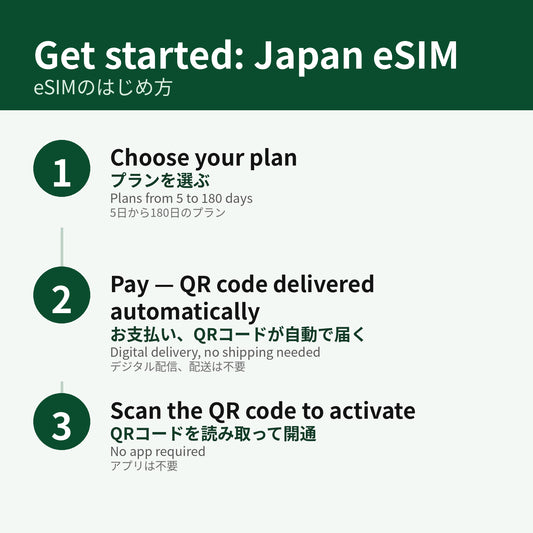
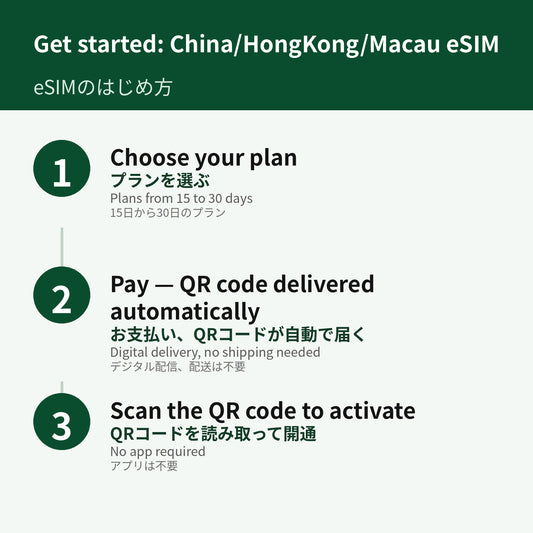
Your UROCOMM eSIM arrives as a QR code in your order email. Scan it on an iPhone 16 and the profile goes on in about 5 minutes, with the download itself taking 1–2 minutes. The part people get wrong is timing, not technique: don't activate the plan before you arrive, because activation starts the validity period.
Everything below applies to all four iPhone 16 models—iPhone 16, iPhone 16 Plus, iPhone 16 Pro and iPhone 16 Pro Max—on iOS 18 or later. If you haven't bought a plan yet, a USA unlimited eSIM or a Japan unlimited eSIM follows this same QR flow.
UROCOMM’s timing rule: install the profile before travel, keep the eSIM line off, and activate it only after you land. Airport or hotel WiFi is the safest place to activate.
Before you start
Two things, and you probably already have one of them: the UROCOMM eSIM QR code from your order email, and a working WiFi connection.
- Connect the iPhone to WiFi before you begin.
- Open the order email on another screen or print the QR code. Scanning from a laptop screen or paper is more reliable than scanning from a screenshot on the same phone you're setting up—resized QR images are where most "it won't scan" problems begin.
- Can't find the email? Contact service@urocomm.com with your order number and support can resend the delivery email.
Step 1: Open Settings > Cellular
This is where every eSIM profile on the phone is managed.
- Tap Settings.
- Tap Cellular. Some regional builds label it Mobile Data or Mobile Service.
- Your main line should be listed. That confirms the phone is active on your current carrier.
Same screen, same route on an iPhone 15, by the way: UROCOMM eSIM activation on iPhone 15.
Step 2: Tap Add eSIM
Add eSIM is what opens the QR scanner; without it, nothing else in this process is available.
- Tap Add eSIM.
- If the phone shows more than one option, choose the QR code option.
- No Add eSIM button at all? Your iPhone 16 may be carrier-locked, and a UROCOMM travel eSIM will not install on a locked phone. Ask your carrier to remove the carrier lock, or use a separate mobile WiFi hotspot as a workaround.
Step 3: Scan the UROCOMM QR code
The iPhone 16 reads the code with its own camera—there's nothing extra to download.
- Point the camera at the QR code and hold it steady.
- If the camera cannot read it, tap Enter Details Manually and type the SM-DP+ address and activation code from the same UROCOMM email.
- Keep WiFi connected throughout. The profile can take 1–2 minutes to download.
Step 4: Confirm the plan and label it
Once the profile lands, name it. Ten seconds now saves you squinting at two identical lines at a foreign airport later.
- Tap Add Cellular Plan if the phone asks you to confirm.
- Label the new line something obvious, like UROCOMM Travel. Avoid leaving it as the default “Secondary” label if you can change it.
- Do not remove your primary line at any screen. That action cannot be undone from the QR setup screen.
Step 5: Set defaults for calls and data
Your home line handles calls and messages. UROCOMM stays quiet until you arrive.
- Under Default Voice Line, choose your home line.
- Under Cellular Data, leave your home line selected for now.
- Turn off Allow Cellular Data Switching. This prevents the iPhone 16 from quietly using your home line for data while you travel.
Step 6: Turn the UROCOMM line off until you land
The profile is installed. Now park it.
- Go to Settings > Cellular and tap the UROCOMM line.
- Toggle Turn On This Line off.
- Installing the profile does not start the travel plan, but activating it does. Switch on too early and the validity period starts running before your trip has even begun. Leaving the line off is the safe default.
Setting up an iPhone 14 instead? The Add eSIM path is nearly identical: How to Set Up eSIM on iPhone 14.
Step 7: Activate after arrival
Wheels down, WiFi on.
- Connect to airport or hotel WiFi.
- Go to Settings > Cellular and tap the UROCOMM line.
- Toggle Turn On This Line on.
- Turn on Data Roaming for the UROCOMM line.
- Go back to Cellular > Cellular Data and select the UROCOMM line.
- Open a website to test it. Activation usually completes within 1–2 minutes.
Troubleshooting
“Add eSIM” is greyed out or missing
On iPhone 16, a missing Add eSIM button usually means the phone is carrier-locked or still busy applying a previous carrier update. Restart the phone once. If it still does not appear, contact the carrier and ask them to remove the carrier lock.
QR code will not scan
Tap Enter Details Manually. The SM-DP+ address and activation code are in the same email. Low light, a cracked screen protector, or a blurry screenshot are usually the cause.
No data after activation
Check three iPhone 16 settings when the UROCOMM eSIM has no data: the UROCOMM line is on, Data Roaming is on for that line, and Cellular Data is pointing to UROCOMM. Then restart the phone once.
I activated too early
Validity on a UROCOMM travel plan normally starts at activation, so an early activation shortens the usable period. Contact service@urocomm.com with your order number and support can check whether a replacement plan is available.
I deleted the eSIM by accident
iPhone 16 does not let you undo a deleted eSIM profile. Contact service@urocomm.com with your order number and ask UROCOMM to reissue the eSIM profile.
FAQ
Do I install the UROCOMM eSIM before I leave or after I arrive?
Install the profile on iPhone 16 before you leave, with the UROCOMM line switched off. Activate it after you land, on airport or hotel WiFi. Early activation can start the validity period.
Can I keep my home number active while using UROCOMM eSIM?
Yes. iPhone 16 supports dual eSIM, so your home line stays live for calls and messages while UROCOMM handles data only. US iPhone 16 models have no physical SIM tray; dual eSIM works the same way either way.
What if my iPhone 16 does not show Add eSIM?
If Add eSIM is missing, the phone may be carrier-locked, and a UROCOMM eSIM cannot install on a locked iPhone. Ask your carrier to remove the lock, or use a mobile WiFi hotspot instead.
What to do next
One rule covers almost every mistake in this guide: install early, switch on late. Do that and the rest is just tapping through screens.
Need a plan for another destination? Browse the eSIM collection. If the install stalls, email service@urocomm.com with your order number and the iPhone model so support can pull up your order.