How to Activate a Travel eSIM on Your Phone Before You Fly
Most first-time eSIM failures happen at home, not abroad. You buy the plan, install the profile, and assume you're done. Then you land and nothing works. This guide covers the correct sequence: buy, install before you fly, activate after you land. You'll get exact steps for iPhone, Google Pixel, and Samsung, plus what to do when the eSIM still won't connect.
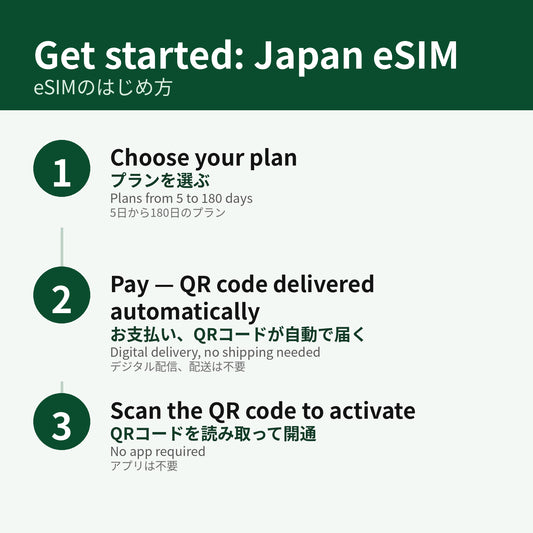
One thing to get out of the way: UROCOMM eSIMs currently work only on Apple, Google, and Samsung phones. If your phone is a Xiaomi, Huawei, Oppo, or OnePlus, stop. The eSIM won't work, even if the phone has eSIM hardware. UROCOMM has not cleared those models for its profiles. In that case, use a portable WiFi hotspot instead. You'll find the current options at https://www.urocomm.com/collections/mobile-wifi-devices. Also, UROCOMM does not sell an eSIM for Japan. Japan coverage is handled by three hotspot models, not a data plan.
Step 1: Buy the right plan for the country you're entering
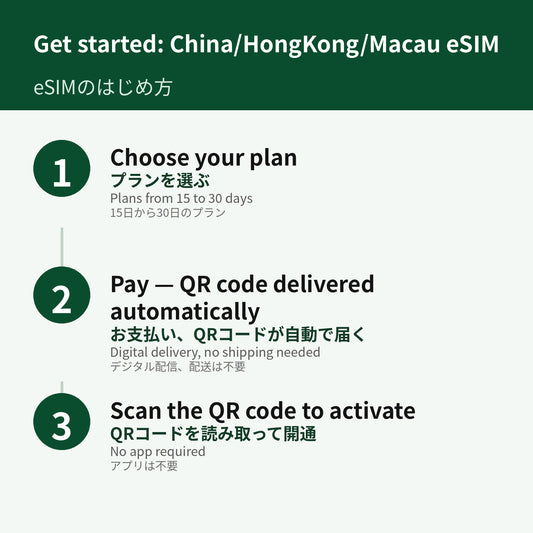
Pick a plan for the country you're landing in. UROCOMM sells country eSIMs for Cambodia, Indonesia, Turkey, and Portugal, among others. For Cambodia, grab the Cambodia Travel eSIM. For Indonesia, use the Indonesia Travel eSIM. For Turkey, the Turkey Travel eSIM is the one to get. Check the order email for the QR code and the manual activation code. If you're flying to Japan, skip the eSIM and pick a hotspot from the collection linked above.
Step 2: Install the eSIM profile before you leave home
Do this on Wi-Fi, not mobile data. The install alone does not start your plan timer. You can do it at home, in the airport lounge, or at your hotel after landing.
On iPhone:
Open Settings > Cellular > Add eSIM. On iOS 17 and iOS 18, the button may say "Add eSIM" or "Use QR Code". Scan the QR code from your UROCOMM email. Your phone will fetch the carrier profile. When the new line appears, tap Continue, but do not turn on "Turn On This Line" yet. Leave it off. For a model-specific walkthrough, see Activate UROCOMM eSIM on iPhone 15.
On Samsung Galaxy:
Open Settings > Connections > SIM card manager > Add eSIM. Choose "Scan QR code" and point the camera at the QR code. If your model asks whether to use the eSIM now, choose "No" or "Later". You don't want it active yet. Samsung-specific setup is in Install eSIM on Samsung Galaxy Phones.
On Google Pixel:
Go to Settings > Network & internet > SIMs > Add SIM. Scan the QR code. When Android asks if the new eSIM should be used for mobile data, leave the toggle off. Finish the install and connect back to Wi-Fi. The Pixel 4 setup guide shows the same flow, and newer Pixels follow the same steps.
Step 3: Do not turn on the eSIM yet
Installing is not activating. The plan's validity countdown starts when you enable the line at your destination, not when you scan the QR code. If you flip the line on before you land, the timer starts early. For a short trip, activating a day early can eat into your data window. Keep your regular SIM active for now.
Step 4: Activate after you arrive
Land first. Connect to airport or hotel Wi-Fi. Then turn on the UROCOMM eSIM.
On iPhone: Settings > Cellular > Cellular Plans, select the UROCOMM line, turn on "Turn On This Line", then go to Cellular Data and select the UROCOMM line as the data line. Toggle on Data Roaming for the UROCOMM line.
On Samsung: Settings > Connections > SIM card manager, select the UROCOMM eSIM, enable it, then set preferred SIM for mobile data to the UROCOMM eSIM and enable data roaming.
On Pixel: Settings > Network & internet > SIMs, choose the UROCOMM eSIM, turn on Mobile data and Roaming.
The plan should connect within 1–2 minutes. If you need more help using it after activation, read How to Use Your eSIM Abroad: Step-by-Step Guide.
Step 5: Test the connection
Turn off Wi-Fi. Open a browser and load a simple page. If it opens, you're set. If not, reconnect to Wi-Fi and check the troubleshooting below.
Troubleshooting: eSIM not working abroad
No data even though the phone shows signal bars.
Data roaming is probably off on the UROCOMM line. On iPhone, go to Settings > Cellular > Cellular Data, choose the UROCOMM line, then turn on Data Roaming. On Android, open SIM settings and make sure roaming is enabled for the UROCOMM eSIM, not your home SIM. If your home SIM still has data roaming on, turn it off.
"No Service" for the first few minutes after landing.
This is normal while the phone finds a local network. Wait 1–2 minutes. If it still says No Service after five minutes, restart the phone with the eSIM enabled. Do not toggle the eSIM off and on repeatedly. That can cause a new network registration loop, which UROCOMM support sees often.
The plan expired too early or asked for a top-up unexpectedly.
Did you activate before landing? That's the most common cause. UROCOMM's timer starts when you enable the line, not when you scan the QR code. If this happened, email service@urocomm.com with your order number. Support will check the activation timestamp and explain the remaining validity.
Phone says eSIM not supported.
This means the phone is not one of UROCOMM's cleared Apple, Google, or Samsung models. If you have a dual-SIM phone from another brand, the eSIM may still be blocked. The workaround is to carry a UROCOMM mobile WiFi hotspot. See https://www.urocomm.com/collections/mobile-wifi-devices.
QR code won't scan or has already been used.
Use the manual activation code in the same email. On iPhone, choose "Use QR Code" > "Enter Details Manually" or "Enter Manually". On Android, choose "Enter code" instead of "Scan QR code". The manual steps are in Activate an eSIM Without a QR Code. If the code is missing, email service@urocomm.com.
FAQ
When do I actually activate the UROCOMM eSIM?
Install the profile before you fly. Activate the line after you land, while connected to airport or hotel Wi-Fi. Do not activate it at home or in the air if you want the full validity window.
Does installing the eSIM start my data package?
No. Installation just loads the profile. The plan's validity starts when you turn on the UROCOMM line. Keep the line off until you're in the destination country.
Can I use UROCOMM eSIM in Japan?
No. UROCOMM does not sell an eSIM for Japan. The country is covered by UROCOMM's portable WiFi hotspot range. For Japan, pick a hotspot from https://www.urocomm.com/collections/mobile-wifi-devices. An eSIM bought for a nearby country will not work in Japan.
The order that matters is buy, install, land, activate. If you get that order wrong, the eSIM is not broken. It's just early. Check your phone brand before you buy, and if you're headed to Japan, switch to a hotspot. Then pick your eSIM at https://www.urocomm.com/collections/esim.