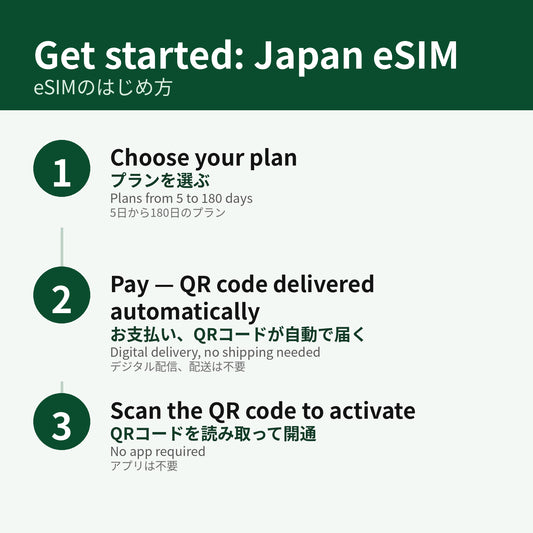
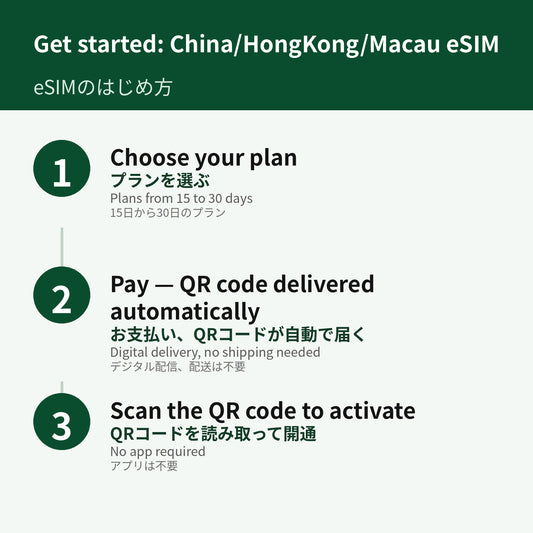
You land at Haneda after a red-eye, the airport WiFi connects, and your UROCOMM eSIM shows zero data left. What you need is a top-up, not a support ticket.
The snag is that UROCOMM does not give you an account dashboard to log into. The top-up link sits in the email you got when you bought the eSIM. Find that email and you are a few taps from more data. Lose it and you are writing to support at midnight.
Do this before you land
Install the eSIM profile at home. Don't buy and activate the plan yet.
A UROCOMM eSIM is two things stacked. The profile is the SIM itself. The data plan is the clock. Installing the profile starts nothing; activating the plan starts the countdown. Activate it while you're still packing and your days tick away in the air, and the plan can run out before your trip does. Wait until you're on airport or hotel WiFi at your destination. That's the timing mistake UROCOMM support deals with most often.
On an iPhone, the install steps are in Activate UROCOMM eSIM on iPhone 15. On Samsung, use Install eSIM on Samsung Galaxy Phones. No eSIM support on your phone at all? A UROCOMM mobile WiFi device is the simpler route.
The 5-step top-up
Five steps, usually under three minutes.
-
Find your original UROCOMM order email. The top-up link lives there, not in an app or a login. Search your inbox for "UROCOMM." Dead link, or you deleted it? Email service@urocomm.com with the order number and the address you used, and UROCOMM can resend a valid one.
-
Open the management page and tap Top Up or Recharge. Your current plan, remaining days and data balance are all on that page. Don't delete the eSIM profile before this step. A top-up extends the profile you already have; it isn't a new install.
-
Pick a data pack. What's on offer depends on the destination. UROCOMM sells a Japan unlimited eSIM and a Canada eSIM that both allow top-ups from the management page. If your country isn't listed, browse the eSIM collection. No need to guess at prices here, because checkout shows the final amount before you pay. One exception: recharging a Malaysia portable WiFi is a separate product, Malaysia WiFi Data Top-Up, tied to the device rather than to an eSIM profile.
-
Pay. Enter your card details. UROCOMM does not publish a universal price because data packs vary by country and validity. Most payments clear in 30–60 seconds.
-
Confirm the data landed. iPhone on iOS 17 or iOS 18: Settings > Cellular, then find the UROCOMM line. Android: Settings > Connections > SIM manager or Mobile networks. Toggle Airplane Mode on for 10 seconds, then off. The new balance should appear. If it doesn't, read on.
iPhone and Android differences
The flow barely changes with the phone. What changes is where you check the result. On an iPhone XS or newer running iOS 17 or iOS 18, the top-up happens in your browser from the email link, not inside the Settings app. Keep Data Roaming off for your home line and on for the UROCOMM line.
Same page on a Samsung Galaxy S20 or newer with Android 13 or Android 14. After you pay, make sure mobile data is set to the UROCOMM eSIM rather than your home SIM. That one setting catches most people.
And if your phone has no eSIM support, none of the above applies. A mobile WiFi hotspot is what you want instead.
Troubleshooting common top-up failures
Payment went through but the balance didn't update. Give it five minutes. Carrier billing lags. Then toggle airplane mode on and off. Still nothing? Email service@urocomm.com with your order number and the address you used.
The top-up button is missing. You've probably opened an old email from a previous trip. UROCOMM ties the link to the original order rather than to a permanent login, so ask support for a fresh one. This is the part of the setup I'd change if I could: a single order email is a thin thread to hang a plan on.
You deleted the eSIM profile after it ran out. A top-up cannot bring back a deleted profile. Reinstall the QR from the original email, or ask support to resend it. Once it's installed, the remaining plan usually reappears. If it doesn't, see What Happens When My Travel eSIM Runs Out of Data?.
Data works but is slow. Check which SIM is actually carrying data. On iPhone, go to Settings > Cellular Data and select the UROCOMM line. On Android, open Connections > Mobile networks and set the data SIM to the UROCOMM eSIM. Turn off data roaming on the home line.
The plan expired before you topped up. If the old plan has already ended, the top-up page may offer a new plan purchase instead of a recharge. That means the previous validity window is closed and a new period starts from the purchase date. Read the new expiry date before you pay.
FAQ
Can I top up before I arrive at my destination?
Install the eSIM profile before you fly. Hold off buying and activating data until you're on airport or hotel WiFi at the destination. Starting early is the quickest way to lose travel days. Multi-country trip? Top up once you reach the first covered country.
Will a top-up extend the expiry date of my current plan?
It depends on the destination and whether the old plan is still active. The management page shows the new expiry date at checkout. Read that date before you tap Pay. If it looks wrong, email service@urocomm.com.
Do I need a new QR code after topping up?
No. A top-up applies to the existing eSIM. If your phone lost the profile, reinstall the original QR rather than hunting for a new one. Support can resend it if you can't find it.
Keep the original order email. It is the access path to your plan: lose it and you lose the link, not the data. UROCOMM support can rebuild the path at service@urocomm.com, but only if you have the order number or the address you bought with. Before your next trip, open the Japan unlimited eSIM or Canada eSIM page and look at the top-up options, so you know what you can add before you actually need it.