What to do when your travel eSIM or pocket WiFi won't connect abroad
You land, switch off airplane mode, and nothing loads. No data after landing comes down to four things in practice: the plan was never started, data roaming is off, the APN is missing, or the hotspot can't find a network. Work through them in that order before you decide the device is broken.
My eSIM says "No Service" after I land. What do I check first?
Turn on data roaming for the eSIM, then restart the phone. It sounds too simple to be the answer, but some phones keep data roaming off for every new SIM or eSIM profile, even when the plan itself is active.
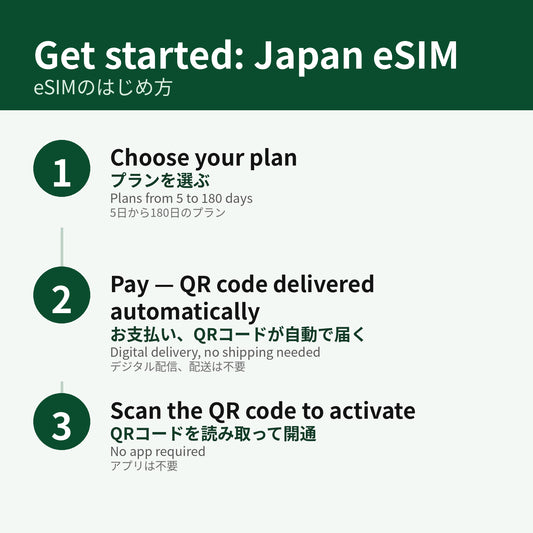
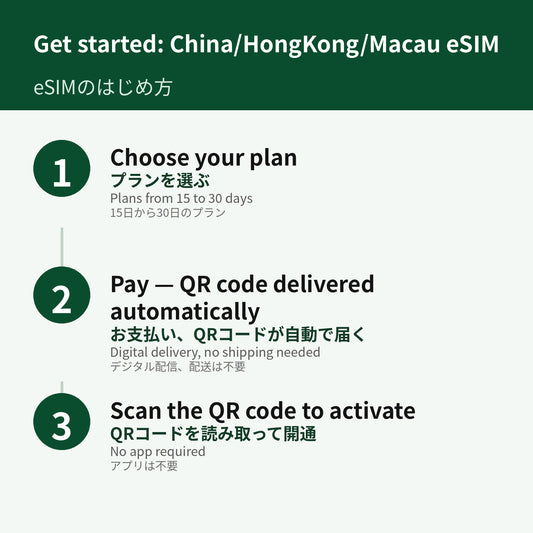
Then check whether the plan has actually been started. UROCOMM handles this differently from a physical SIM. You can install the profile days before your flight, but the plan only begins when you trigger it. Profile installed, plan not started, and the phone has no active data session to use. There's a longer walkthrough in Why Is My Travel eSIM Not Working?, covering airplane mode resets, manual network selection and APN checks, in that order.
Should I activate the eSIM before I fly or after I land?
Install the profile before you fly. Start the plan after you land.
That order matters. Activating early can start your validity period, and UROCOMM's destination plans run as short as 1 day and up to 30 days, so losing a day at the front is not trivial. Install at home, too, while you still have your own WiFi; downloading a profile over airport or hotel WiFi can be slower, or blocked outright.
The full sequence is here: How to activate a travel eSIM on your phone before you fly. Short version: scan or tap the profile installation link before departure, leave the eSIM switched off in your phone settings, then switch it on and start the plan once you're in the destination country.
Why does my pocket WiFi have power but no internet?
A battery light and a WiFi name prove the device is awake. They don't prove it has a data path. On UROCOMM's no-SIM hotspots the network is preconfigured, but the device still has to find and attach to a supported carrier in the country you're standing in.
Outside the coverage list, that search fails quietly, with no error message worth reading. The WiFi 6 Portable WiFi Hotspot for Travel covers up to 110 countries; the Japan WiFi 6 Portable Travel Hotspot is built for Japan's carriers specifically. Bring the Japan unit to a country outside that list and it won't connect, and no amount of resetting changes that. Check the product page before you blame the hardware.
If you are within coverage, power the hotspot off for 10 seconds, turn it back on, and let it rescan for a network. That clears a stale connection left over from the flight.
How do I know if my phone can even use a UROCOMM eSIM?
The phone has to be unlocked and eSIM-capable. That rules out most carrier-locked handsets and a fair number of older Android models.
Check your exact model against UROCOMM's compatibility guidance before you buy: What to check before buying a travel eSIM for your phone model. It covers the carrier lock problem and the phones that most often refuse an eSIM profile. If yours is on that list, stop troubleshooting. A locked phone will not accept a profile, however many times you restart it.
A portable hotspot sidesteps phone compatibility entirely, because it creates its own WiFi network. The Macaroon 5 M5 5G Portable WiFi Hotspot works with any WiFi-capable phone, tablet or laptop. The trade-off is real: one more device to carry and charge every night, in exchange for not caring which phone you brought.
My eSIM says it's connected, but web pages won't load. What's happening?
"Connected" often means the phone has a cellular signal, nothing more. Data can still be unconfigured. Two culprits cover most of it: a missing APN, and data roaming left off.
UROCOMM eSIMs should apply the APN automatically once the profile installs. When that goes wrong, pages sit there and time out while voice and SMS keep working, which is what makes it confusing. Open your phone's mobile data settings and match the APN field to the one listed in your eSIM installation instructions. If you can't find those instructions, How to Use Your eSIM Abroad walks through the APN field on iPhone and Android.
Then check your data balance. A used-up plan can leave the connection icon sitting there while no data moves. What Happens When My Travel eSIM Runs Out of Data? explains what to look for and how to top up.
What if none of this fixes it? Can I get help?
Email service@urocomm.com. Include your order number, the country you're in, the phone or hotspot you're using, and what you've already tried. That saves a round of back-and-forth.
UROCOMM does not publish a blanket troubleshooting guarantee or a fixed support response window, but the support inbox is monitored and the team can check the plan status on their side. If the issue is a device fault rather than a setup gap, they'll tell you what your repair or replacement options are. Don't buy a second data plan before support confirms the first one isn't recoverable.
Still stuck?
Email service@urocomm.com with your order number and the country you're in. But if the real obstacle is your phone — locked to a carrier, or too old for eSIM — stop resetting it and start with the Macaroon 5 M5 5G Portable WiFi Hotspot. You keep the handset you already own, and the hotspot does the part your phone can't.